
Designing a Desktop
It’s time to design our desktop. The desktop, of course, is the interface that agents see when handling calls or other types of interaction.
Adding a Container
The first thing you need to do is add a container to your desktop. A container lets you organize desktop controls into columns. This will make sense once you see it, so let’s just go ahead and do it.
Click  . You’ll be presented with various choices:
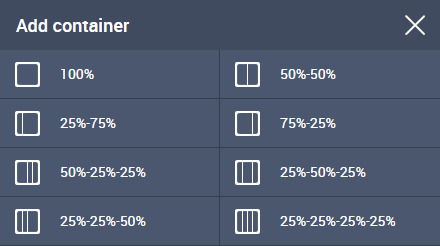
Click 25%–75%.
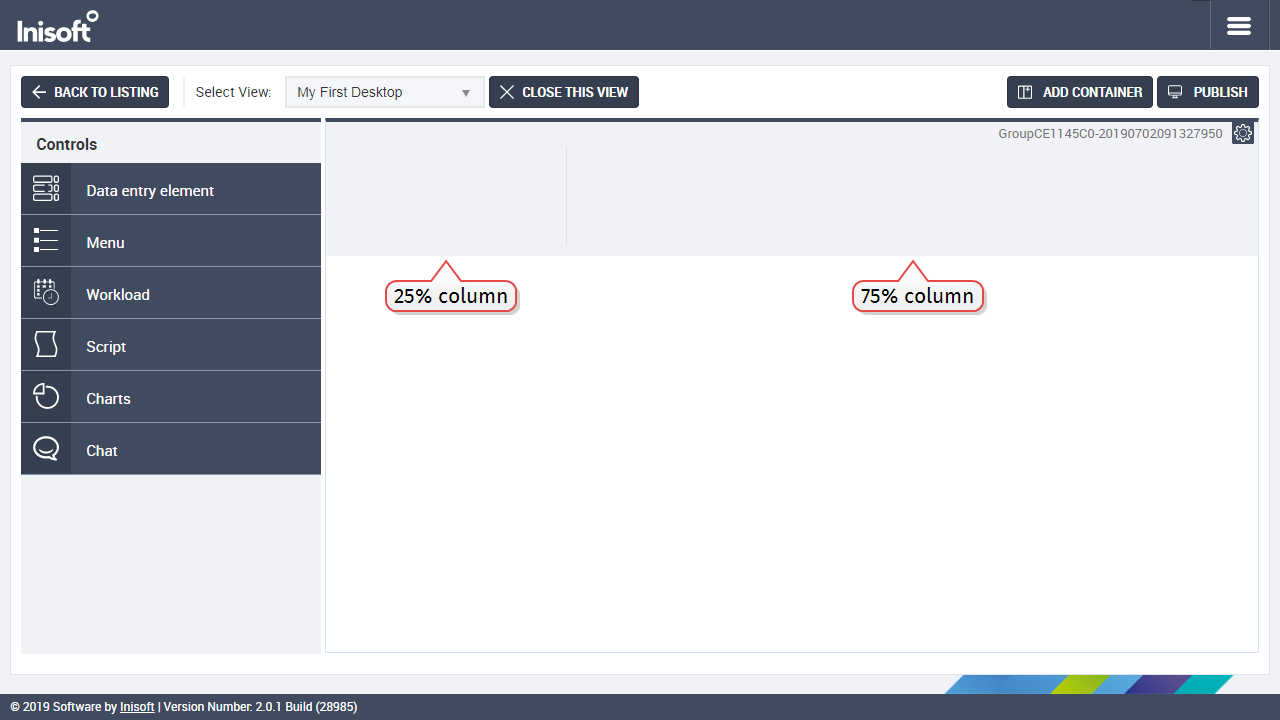
A two-column container is added to your desktop. The left-hand column of this container will take up a quarter of the horizontal space on the agent’s desktop, while the right-hand column will take up three-quarters of the space.
Adding a Data Entry Element
Now let’s add a control to our desktop: we’ll add a data entry element.
A data entry element lets agents enter and view details, such as the customer’s information. It actually also has other uses, but let’s not get ahead of ourselves — we can talk about those later.
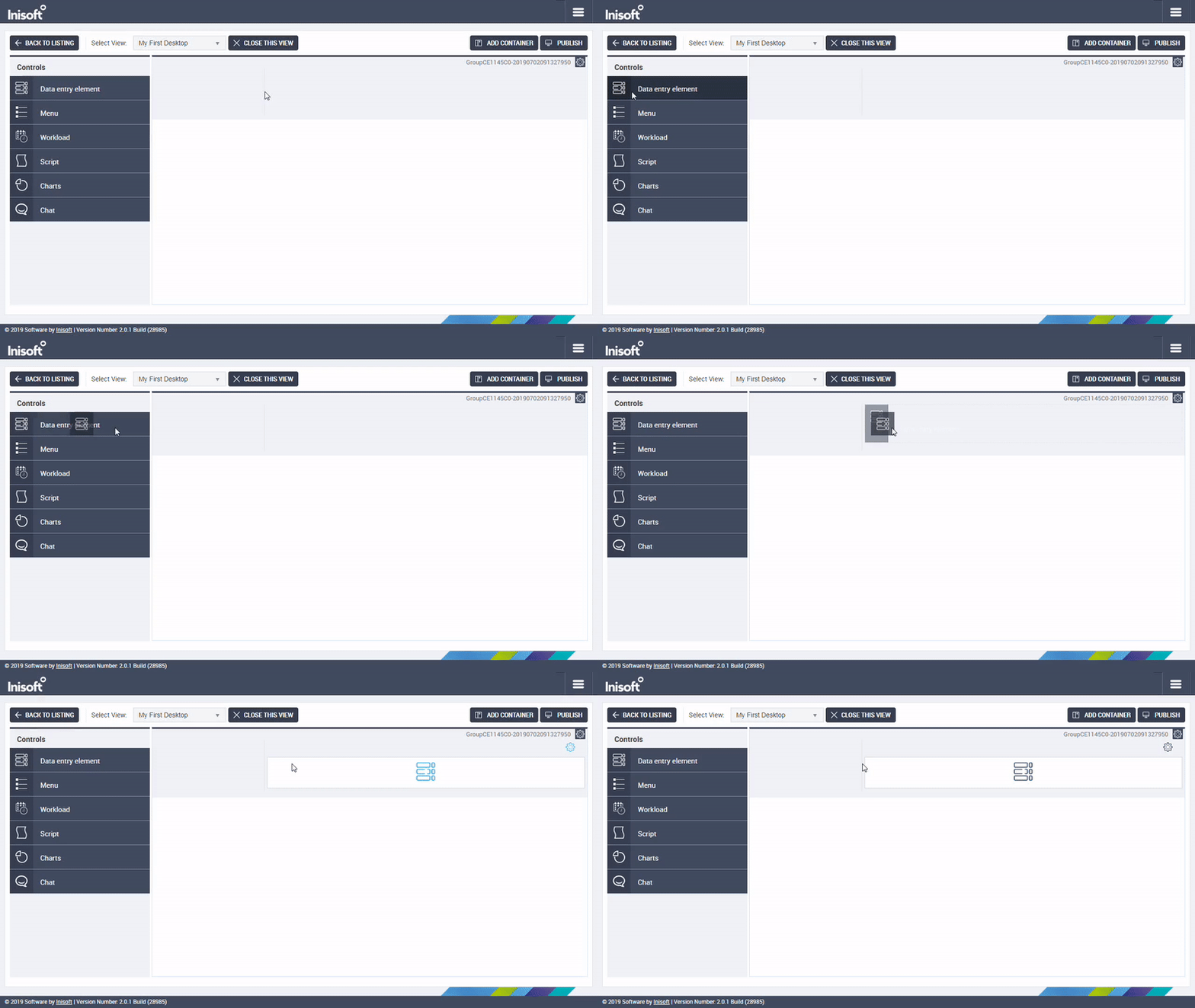
In the left-hand Controls menu, click and drag a data entry element to the right-hand column of your container.
Viewing a Data Entry Element
We now have to set the data entry element that we want to use. We do this by editing the control’s properties.
Click the cogwheel on the data entry element to show a menu, and then click Properties:

The left-hand Controls menu is replaced by a new Control properties menu:
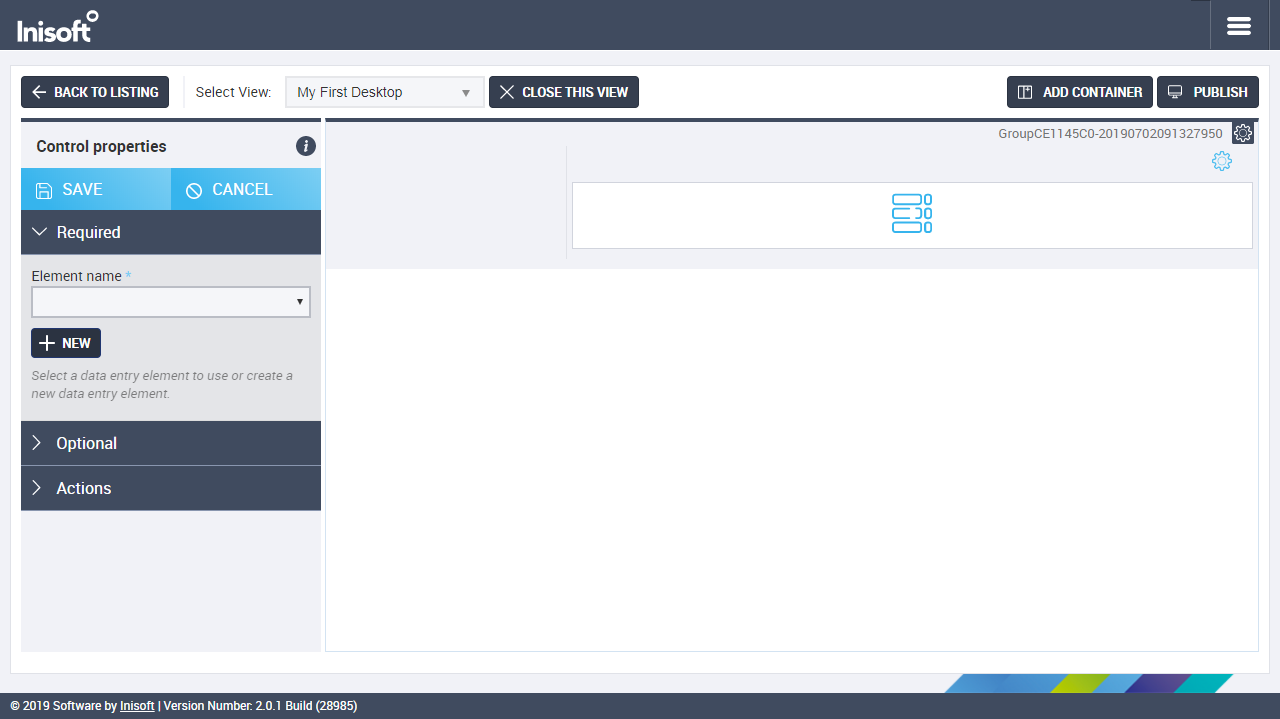
In the Element name dropdown, you can select an existing data entry element, but let’s not do that — let’s create a new one!
Click  .
.
You’ll be asked to type a name for the data entry element. We’re going to use this data entry element to hold customer details, so type Customer Details (or something similar).

Next click SAVE. You’ll be asked whether you want to view the data entry element now. Click YES.
A new tab will open in your browser, and an empty data entry element will show.
You’ve now jumped from the Desktop Designer (which you selected at the very beginning) to the Data Entry Designer. You’ll notice that the interface looks very similar — that’s to keep things simple!
In the next chapter, we’ll look at Designing a Data Entry Element.
Note: Some browsers block pop-ups, which can prevent your browser from opening the Data Entry Designer in a new tab. If you’re having problems, check your browser’s settings.